
Aoocci FAQs

FAQ & Centro de Soporte

Self-Support
No sound on CarPlay?
No, it's not necessary. You can shop and pay as a guest each time.
After your smartphone is connected to the CarPlay Smart Box, but there is no sound, how can I solve this problem?
1. Lock your phone, then turn on the screen and click the AirPlay button on your phone's screen;

2. There will be at least two connection channels: one is CarPlay; the other is Bluetooth.
- CarPlay refers to the AUX configuration channel of the CarPlay system
- Bluetooth means the car's original Bluetooth audio channel

3. The sound problem is usually caused by incorrect selection of these two channels. Switch to another channel to fix the sound problem.
4. There is another solution:
Go back to the car's original system and look for the external device.
Look for the AUX channel and the Bluetooth channel. If there's no sound, switch them.
- Audi: Returns to the car's original system => Media => AUX-IN;
- Porsche: Return to the car's original system => press the 'SOURCE' button => press the 'OPTION' button => select 'SET MEDIA/AUX';
- Mercedes-Benz: Returns to the car's original system => (NTG4.5) in Engineering Model;
- BMW: Returns to the car's original system => Multimedia.
5. What if I can't see the AUX option/channel on my original car system?
- Go to the dealership to activate the AUX option;
- Obtain an AMI-AUX cable to enable the channel. If you need to purchase a cable, please refer to the following link:
How can I reset and restore the factory settings of the AI-Box?
1. First click "Settings".

2. Find "System" and click to enter.

3. Select "Advanced".

4. Enter "Reset Options".

5. Select the third "Restore Factory Settings".

What to do if the Smart Box does not connect?
What to do when you return to your vehicle but CarPlay doesn't connect automatically:
Please note that the Smart Box's Bluetooth will automatically turn off if it remains inactive for a short period. If you experience this issue, follow these steps to resolve it:
1. On your Phone > Bluetooth , double-tap the device (IDCORE) to check if Bluetooth is connected to the Smart Box.

2. If Bluetooth is not connected, access 'Settings' in the vehicle menu, go to 'Bluetooth' settings and check the paired devices (usually this will be your phone) ;


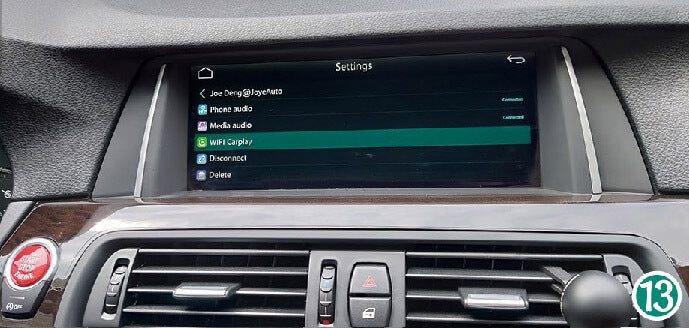
3. Select the paired phone and then choose 'WiFi CarPlay' to reset the connection ;

4. If the connection still isn't established, make sure your phone's Wi-Fi is turned on but not connected to any network . Then, select 'Wi-Fi CarPlay' in the vehicle's menu again to connect your phone.
How to use the wireless CarPlay/Android Auto function with the AI Box?
- Connect the Box to the Heating Unit
- Connect one end of the cable to your car's USB port. The USB port may be labeled with a smartphone icon.
- Connect the other end of the cable to the USB/Type-C port on the AI Box.


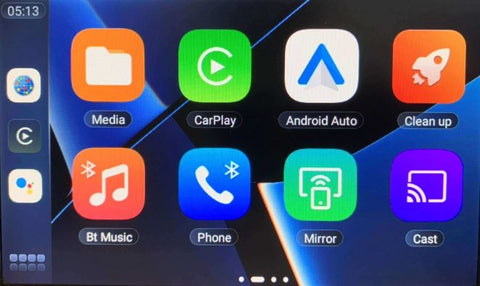
- After the box is powered on, it will start automatically and the home screen will appear on your car's screen.
- The initial identification process may take a few minutes. Once the car's screen displays the Box's main interface, the connection will be successful.
- How to use Wireless CarPlay/Android Auto
- Turn on Bluetooth and Wi-Fi on your phone.
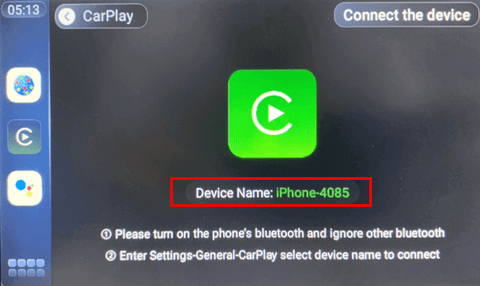
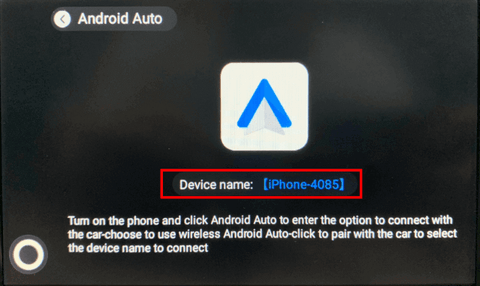
- Click on the CarPlay or Android Auto icon on the main interface of the Box to enter the interface to connect.
- Then, on your phone
- iPhone: Go to Settings > General > CarPlay, and select the name of the device to connect.
- Android Phone: Click on Android Auto to enter the option to connect to the car > Choose to use wireless Android Auto > Click to pair with the car and select the device name to connect.
- How to use multi-window
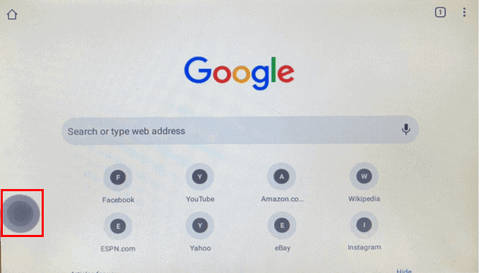
- Press the blank area to bring up the Start button. > Click the Start button.
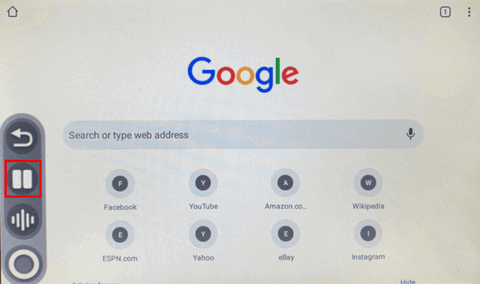
- Click the multi-window button.
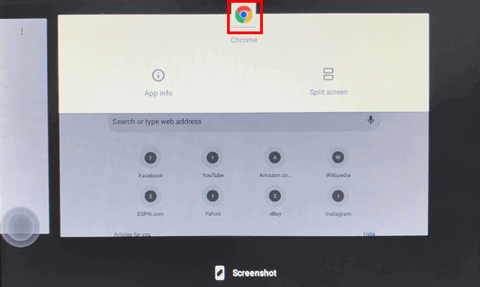
- Click on the application icon.
- Select any other window you want.
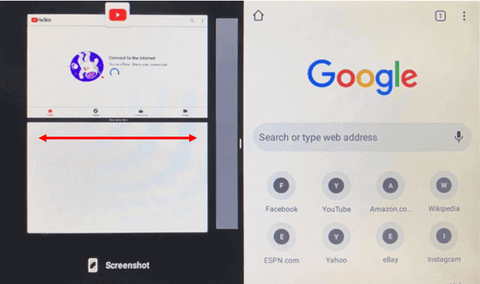
- How to stop multi-window>Press and hold the center to swipe left or right.
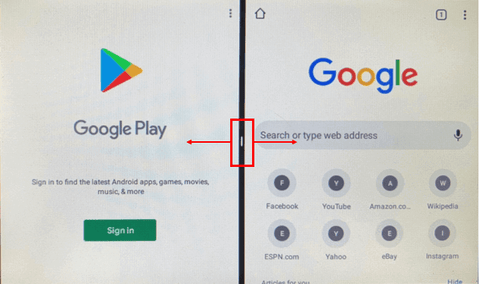
- Press the blank area to bring up the Start button. > Click the Start button.
- How to use the screencast
Before you begin, make sure the Box is connected to the same Wi-Fi network as your phone or the Box is connected to the phone's hotspot (Settings > Wi-Fi).- Click on the Cast icon > Check the device name in the upper left corner.
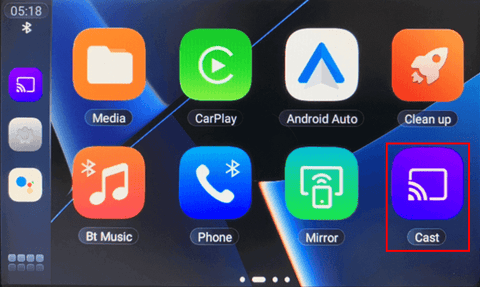
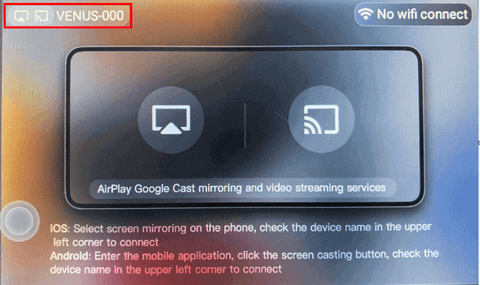
- Click on the "Cast" icon in the app on your phone > Select the name of the device to connect.
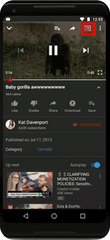

- Click on the Cast icon > Check the device name in the upper left corner.
- How to use screen mirroring
Before you begin, make sure the Box is connected to the same Wi-Fi network as your phone or the Box is connected to the phone's hotspot (Settings > Wi-Fi)- Click on the Duplication icon > Select the icon that corresponds to your phone system
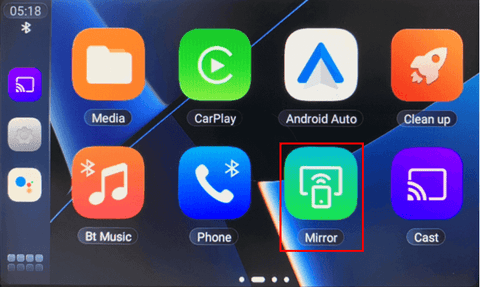
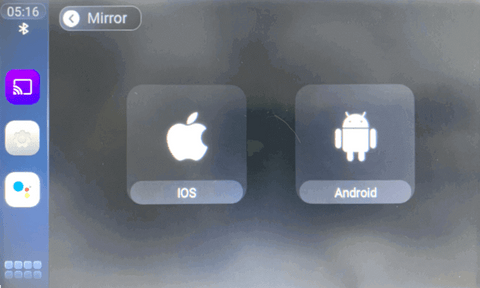
- Click the “Screen mirroring” icon on your phone > Select the device name to connect
- Click on the Duplication icon > Select the icon that corresponds to your phone system
How to clear the Android Auto cache?
To effectively clear the Android Auto cache, you can follow these steps:
1. Open "Settings" or a similar option available depending on your system.
2. Go to Applications.
3. Tap on View all apps.
4. Search for and select Android Auto.
5. Go to Storage and cache.
6. Tap on Clean storage and Clear cache.
However, it's important to consider precautions and warnings before proceeding with the cleaning process. Users should be aware of the impact this action can have on their Android Auto system, as cleaning storage could result in the deletion of temporary data, which would temporarily affect the app's performance. By understanding the implications and taking the necessary precautions, users can ensure a smooth cleaning process that contributes to the optimized performance and longevity of their Android Auto system.
How do I connect CarPlay wirelessly?
1. In the vehicle's factory main menu, select " Multimedia ".
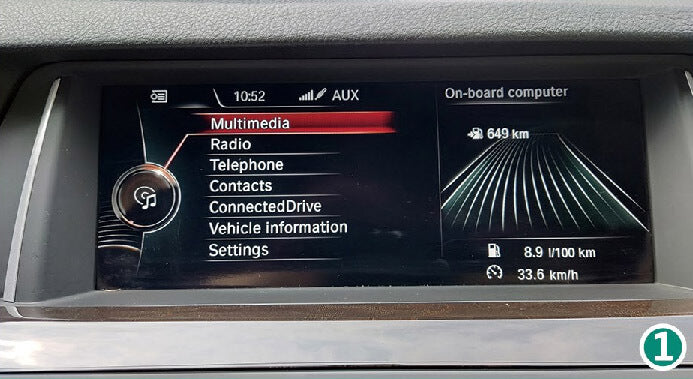
2. Select the "AUX" channel .
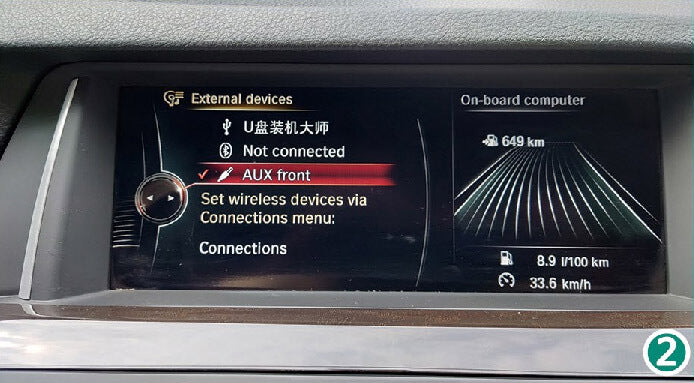
3. Press the "Switch" button (refer to the installation diagram to locate it).
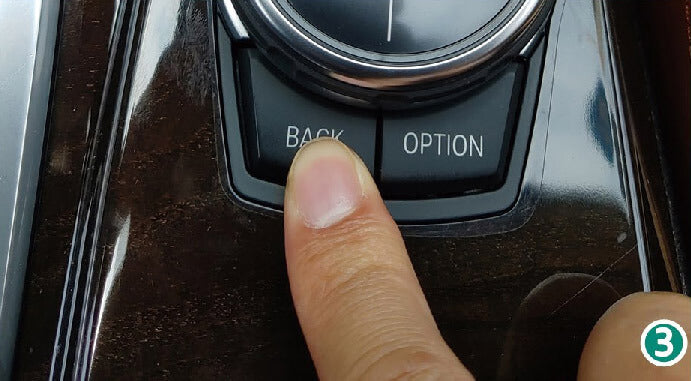
4. You will now access the main menu of "SmartBox" .
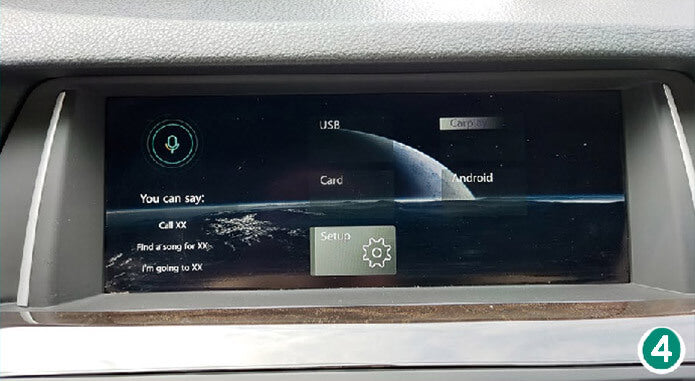
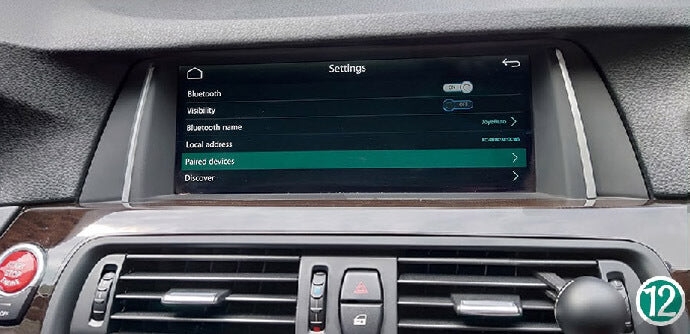
5. Click on "Settings" and select "Bluetooth" .
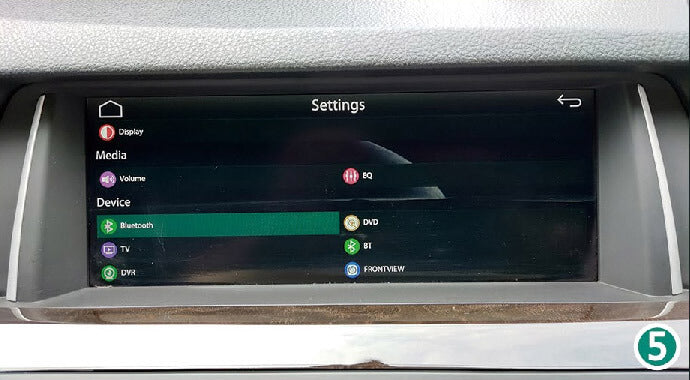
6. Activate visibility (put into visible mode).
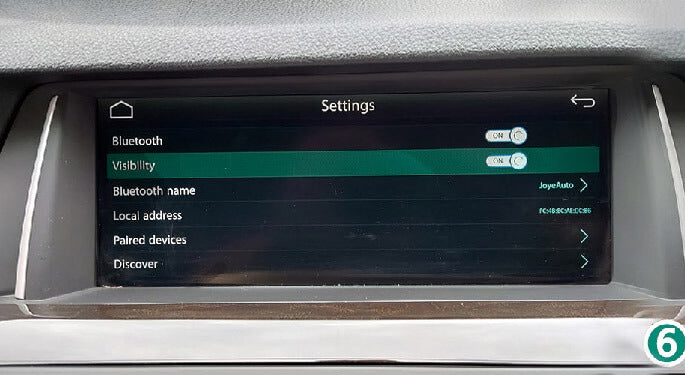
7. On your iPhone, go to "Settings" .
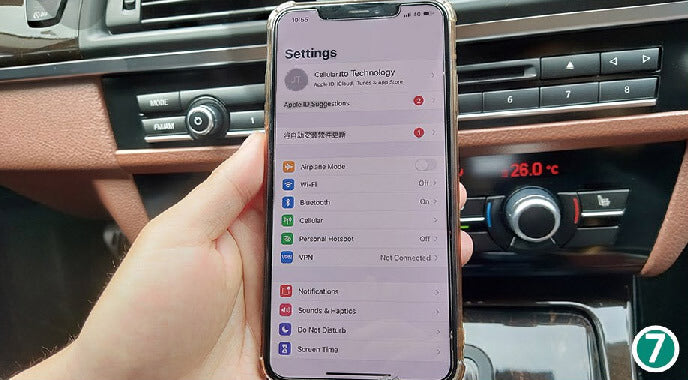
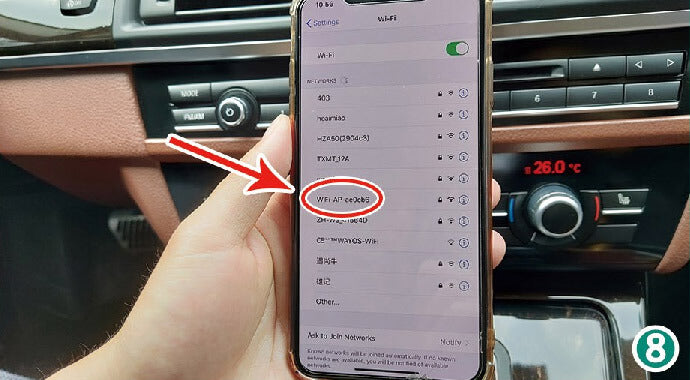
8. Activate WiFi ( DO NOT connect to any network; the WIFI-AP-*** network will appear).
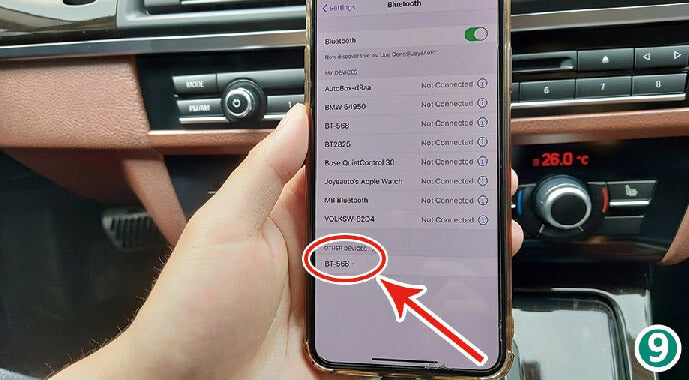
9. Activate Bluetooth ; the SmartBox Bluetooth option will appear.
10. A Bluetooth pairing request will appear ; select "Pair" .
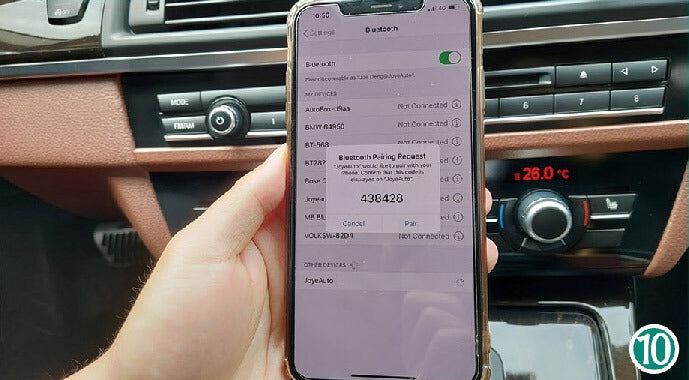
11. Accept the synchronization of "Contacts and Favorites" .
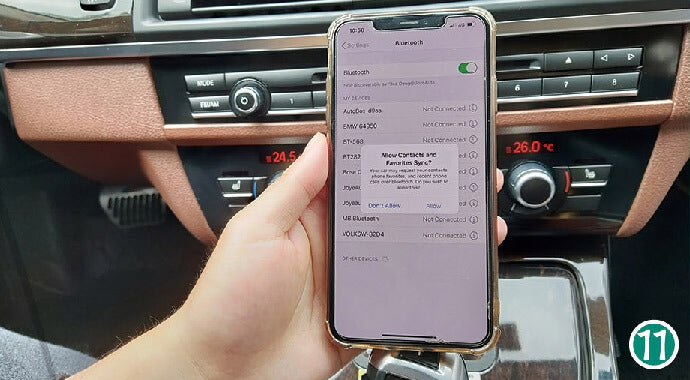
12. In the SmartBox's Bluetooth menu, click on "Paired Device" (visibility will be automatically disabled).
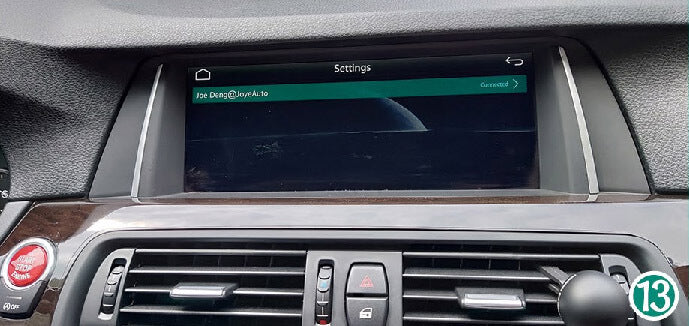
13. On the iPhone, go into Bluetooth settings and select the Aoocci device.
14. Next, select "WiFi CarPlay" .
15. The iPhone will display the "Use CarPlay" request ; accept it to automatically enter the CarPlay interface.
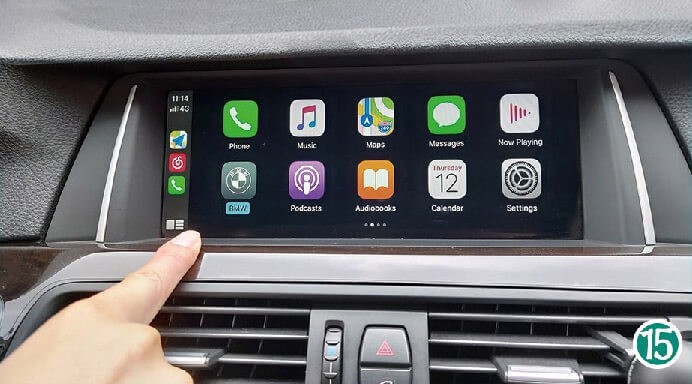
How to watch YouTube in CarPlay?
Method 1: Jailbreak and Install Plugins:
After completing the aforementioned operations of jailbreaking and installing the carbridge plugin to lift the restrictions of Apple CarPlay. However, jailbreaking may affect the phone's warranty and the operation is relatively complex. The specific steps vary depending on the iOS version and the jailbreak tool used.
For example, the steps for using the checkra1n jailbreak software are roughly as follows:
- Download the jailbreak tool and install it.
- Connect the iPhone to the computer via a transmission line, open checkra1n and follow the prompts to enter DFU mode for jailbreaking.
- After the jailbreak is completed, install Cydia, which is similar to a software download center for jailbreak programs.
- Add software sources in Cydia, then search for, purchase and install the carbridge plugin.
After completing the above-mentioned operations of jailbreaking and installing the carbridge plugin, the following steps may be required to use YouTube:
- Ensure that your iPhone is connected to the Internet, either via Wi-Fi or mobile data connection.
- Open the already installed carbridge plugin.
- Search for and click on the YouTube app icon within the plugin.
- Wait for the YouTube app to load and start.
- After entering the YouTube app, you can search, browse the videos you are interested in, and click to play and watch.
It should be noted that jailbreaking an iPhone to lift restrictions and installing plugins not officially certified by Apple may violate Apple's service terms, and may also bring security risks and stability issues. Furthermore, the laws in some regions may also prohibit such behaviors.
Method 2: Use CarPlay Box
Third-party CarPlay boxes allow vehicles that don't originally support CarPlay to have similar functions through an external device. These boxes typically connect to the vehicle's USB port, communicate with the phone, show specific apps from the phone on the vehicle's display, and offer some interaction and control.
To watch YouTube on Apple CarPlay with a multimedia box, you need these:
- An iPhone with iOS 9 or later and a car that's compatible with wired CarPlay.
- A multimedia box that supports YouTube streaming and works with your car.
- A USB cable or wireless dongle to connect the box to the car's USB port.
- Wi-Fi or cellular connection for the Internet.
Once you have these, do the following to watch YouTube on Apple CarPlay with the multimedia box: ( You can click here to go to YouTube to watch how our CarPlay box is used. )
- Put the multimedia box in the car's USB port using a USB cable or wireless dongle.
- Connect your iPhone to the box's wireless network or use your cellular data.
- Open the box's app on your iPhone and choose YouTube from the list.
What do I do if I get a black screen in Apple CarPlay?
1. Check the Connections:
Ensure your iPhone's cable is undamaged, clean, and firmly connected to the car's USB port. Remove any obstructions.
2. Update the Software:
Keep your iPhone and car's infotainment system updated with the latest software versions. Check for updates in your iPhone's Settings and follow manufacturer guidelines for car system updates.
3. Restart the Devices:
Restart both your iPhone and the car's infotainment system to refresh the software and establish a stable connection.
4. Reset the Settings:
If the problem persists, reset your iPhone or car's infotainment system settings to default to resolve software conflicts.
5. Seek Professional Assistance:
Contact Apple support for iPhone troubleshooting. Reach out to your car manufacturer or dealership for guidance on infotainment system issues.
How to fix Google Maps' automatic day/night mode not working on Android Auto
-
Restore Google Maps to factory defaults
-
Remove Google Maps and install an older version
-
Turning the headlights/dashboard lights on and off
If everything is set to automatically change the color scheme, turning the headlights/dashboard lights on and off will force Google Maps to switch to the correct mode. However, you'll encounter the same problem every time you use Android Auto again.
How to use Android Auto via wireless connection?
-
Open the Android Auto app. Tap Settings. Tap Developer options. Select "Add wireless projection to settings".
- Open your phone's system wifi settings and do not connect to any wifi network.
-
Activate Bluetooth and pair with the Bluetooth of the smart box.
- Smart box >> Settings >> Bluetooth >> Discover >> Pair with your phone >> Complete pairing.
Find answers to frequently asked questions, troubleshooting guides, and technical support for all Aoocci products. Check out our FAQs or contact our team for assistance.